
Give a teammate access
In Flui, a new account starts with no access. Somebody who signs in for the first time sees the home page and their own settings, and nothing else. There is no default role and no rule that signed-in users can read.
As a result, every bit of access somebody has is a grant you can find in a list. Nobody can reach an application because of a rule nobody remembers writing. This page shows how to create those grants.
What a grant is
A grant has three parts:
- Who: a person, a group, or a service account.
- Which role: how much they may do.
- How far it reaches: the scope.
Removing the grant removes the access.
First, they need somewhere to sign in
A grant is written against an email address, so you can make it before the account exists. The person still has to be able to sign in, though.
You create the account in the dashboard, under Access → People with Invite user. Fill in the email and a first and last name, and Flui creates the account and gives you either an invite link to send them or a temporary password.
There is no CLI command for this, and an agent cannot do
it either. An agent has user_invite_request, which
creates nothing: it says whether an account with that
address already exists and points you to the screen where
you invite them. An invite link is itself a credential
(whoever opens it becomes that account), so it never
passes through an agent.
If your installation signs people in through your own identity provider, a role can also be assigned there. It counts when they sign in, but Flui does not hold it, so it does not appear in any list on this page and you cannot take it back from here.
The roles
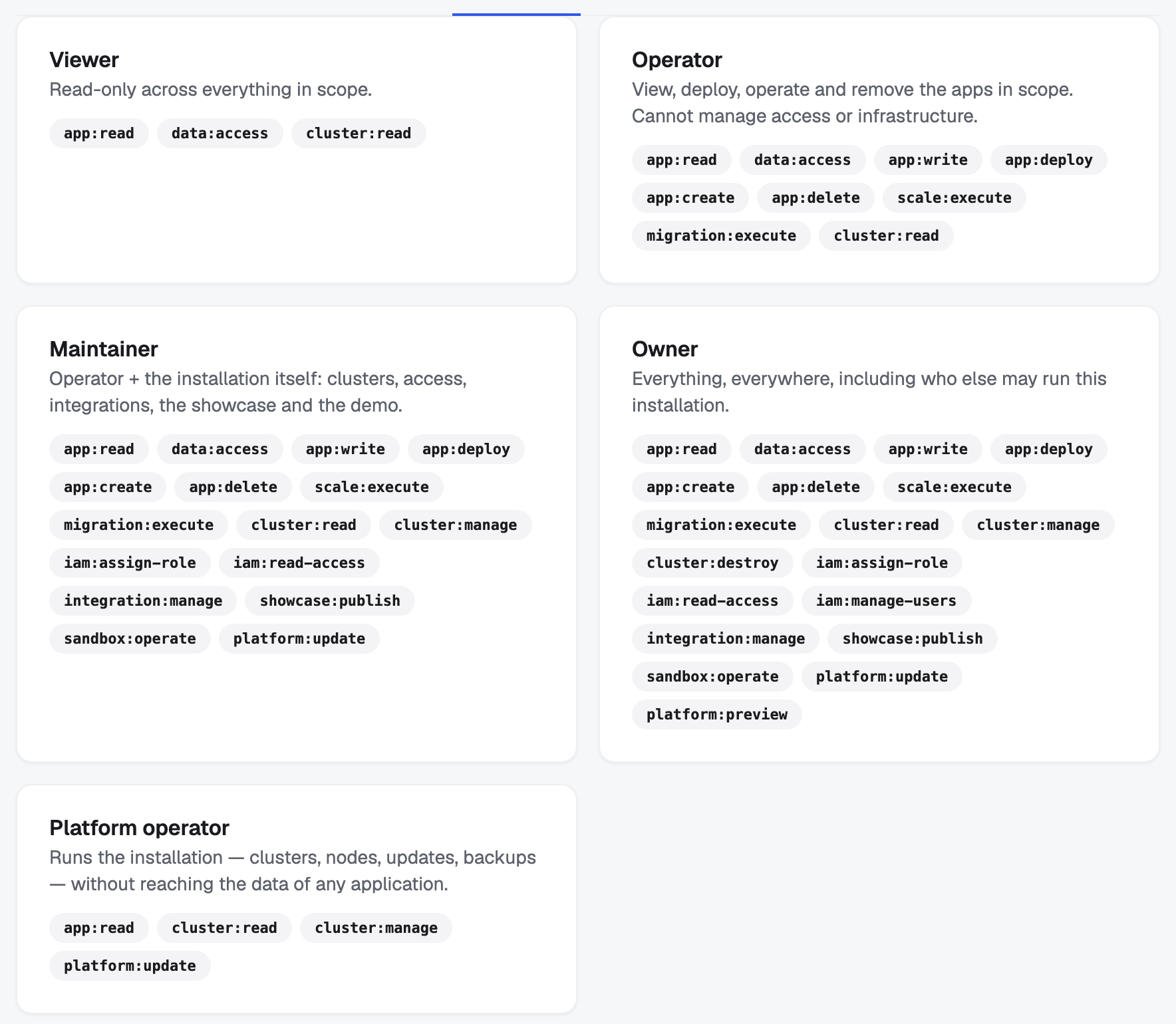
Four of the roles form a ladder. Each one carries everything the one below it carries, and adds to it.
- Viewer: reads the applications in scope and the clusters they run on. Changes nothing.
- Operator: manages the whole life of the applications in scope. It can create, deploy, configure, scale, migrate and remove them. No access management, no infrastructure.
- Maintainer: everything an operator has, plus the installation itself: clusters, who may reach what, the shared integrations, the showcase and the demonstration.
- Owner: everything, everywhere, including who else may run this installation.
The fifth role sits outside the ladder:
- Platform operator: runs the installation (clusters, nodes, updates, backups) without reaching the data of any application.
Only an owner can make another owner. Granting owner
requires user-management authority over everything, and
no role but owner carries that. A maintainer can hand
out every other role and no more.
The same rule applies to removal. Removing a grant that carries a role you could not have granted is refused too. Otherwise a maintainer could remove an installation’s owners one grant at a time.
flui iam roles prints the ladder, what each role
carries, and whether you may hand out each one.
How far it reaches
A grant reaches in one of four ways.
Everything. The whole installation. This is the default, and it is what you want for the few people who run the installation.
One cluster. The role applies to what is on that cluster and nothing else.
One portal section. The grant names a section of the interface, such as Clusters, Backup or Mail.
A rule over applications. Instead of naming applications one at a time, you describe them: their kind, their project, the provider underneath, their tags, their slugs. Everything you name has to match at once, and an application must carry all of the tags you list. The rule keeps applying: an application deployed tomorrow that fits the description is covered as soon as it exists, with nothing to add.
A grant that reaches only some applications opens the workload screens and nothing more. The management sections (Clusters, Infrastructure, Providers, Firewall, Backup, Mail, Projects, Access) open only for a role granted over everything. Scoping a maintainer to one cluster does not give them the Infrastructure section for that cluster. It gives them no management sections at all.
Give the grant
# somebody who helps run the placeflui iam grant add -p alice@example.com -r maintainer
# a group, read-only, on one clusterflui iam grant add -t group -p platform -r viewer \  -s cluster --cluster <cluster-id>
# every database application, whatever it is calledflui iam grant add -p bob@example.com -r operator \  -s selector --kind DATABASE
# a build identity, over two named applicationsflui iam grant add -p ci-deployer -t service_account \  -r operator -s selector --app acme-api --app acme-web
flui iam grant list
-t is the principal type: user (the default),
group or service_account. For a user it takes an
email, for a group the group name, for a service account
the identity’s id.
-s is the scope: global (the default), cluster
with --cluster, section with --section, or
selector.
With -s selector you describe the applications with
--kind, --project, --provider, --cluster-id,
--cluster-name, --app-type, --app (a slug,
repeatable) and --tag (repeatable, and all of them
must match). At least one is required. --selector
takes the same thing as raw JSON if you prefer to write
it that way.
--dry-run says what the grant would open (and what the
same change closes) and creates nothing.
--expires makes the grant temporary: a duration from
now (8h, 7d, 2w) or a date. Without it the grant
stays until somebody removes it.
Management → Access in the sidebar, then the Grants tab. The builder at the top has four fields, in the order you think about them: Who, Role, What and Ends. Ends is never, unless you pick a time or a date.
What offers everything, one cluster, one project, one specific app, apps of a kind, a collection by tag, or a portal section. Underneath, a Preview counts the applications the grant would reach and names them, so you see the blast radius before you save it.
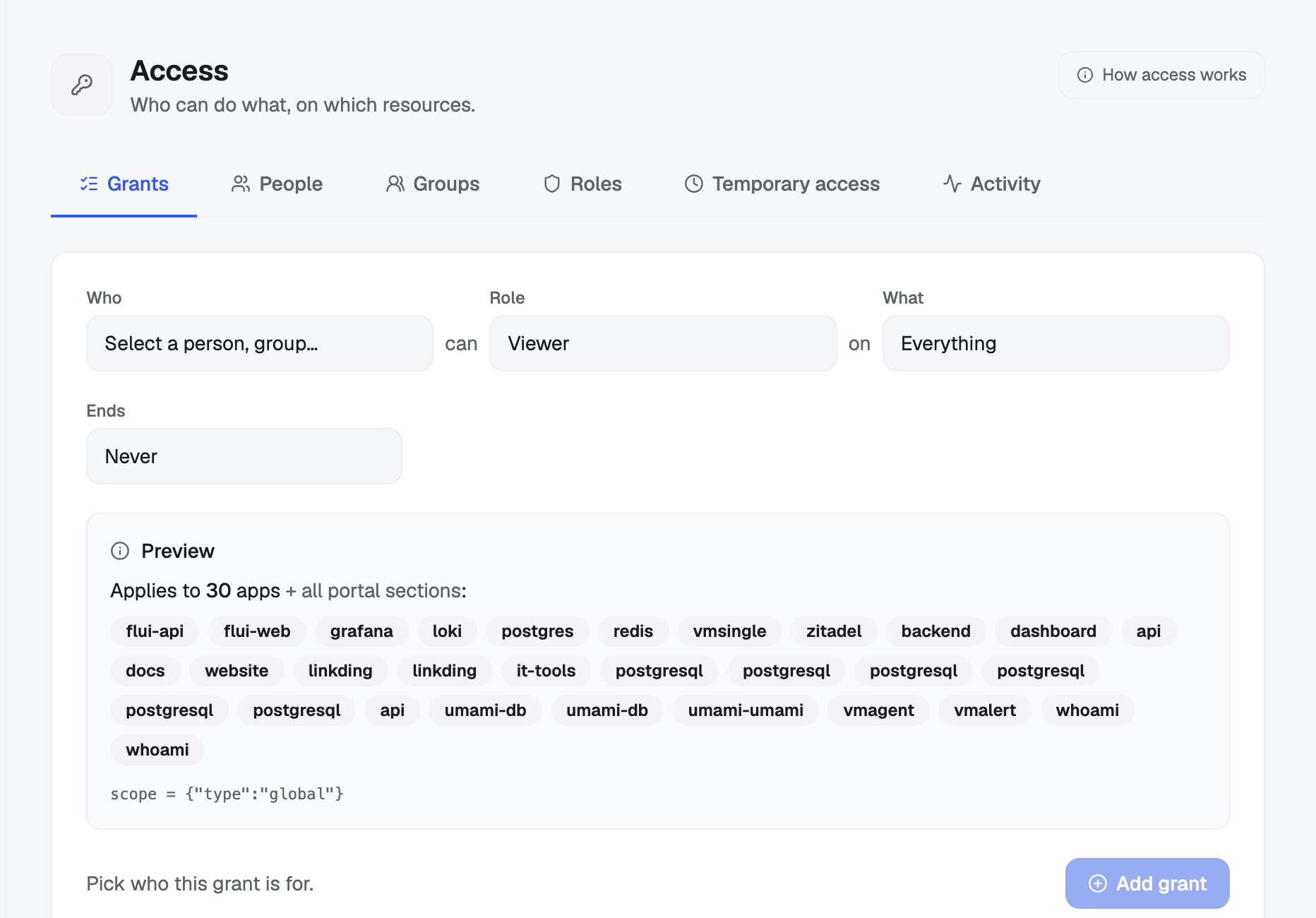
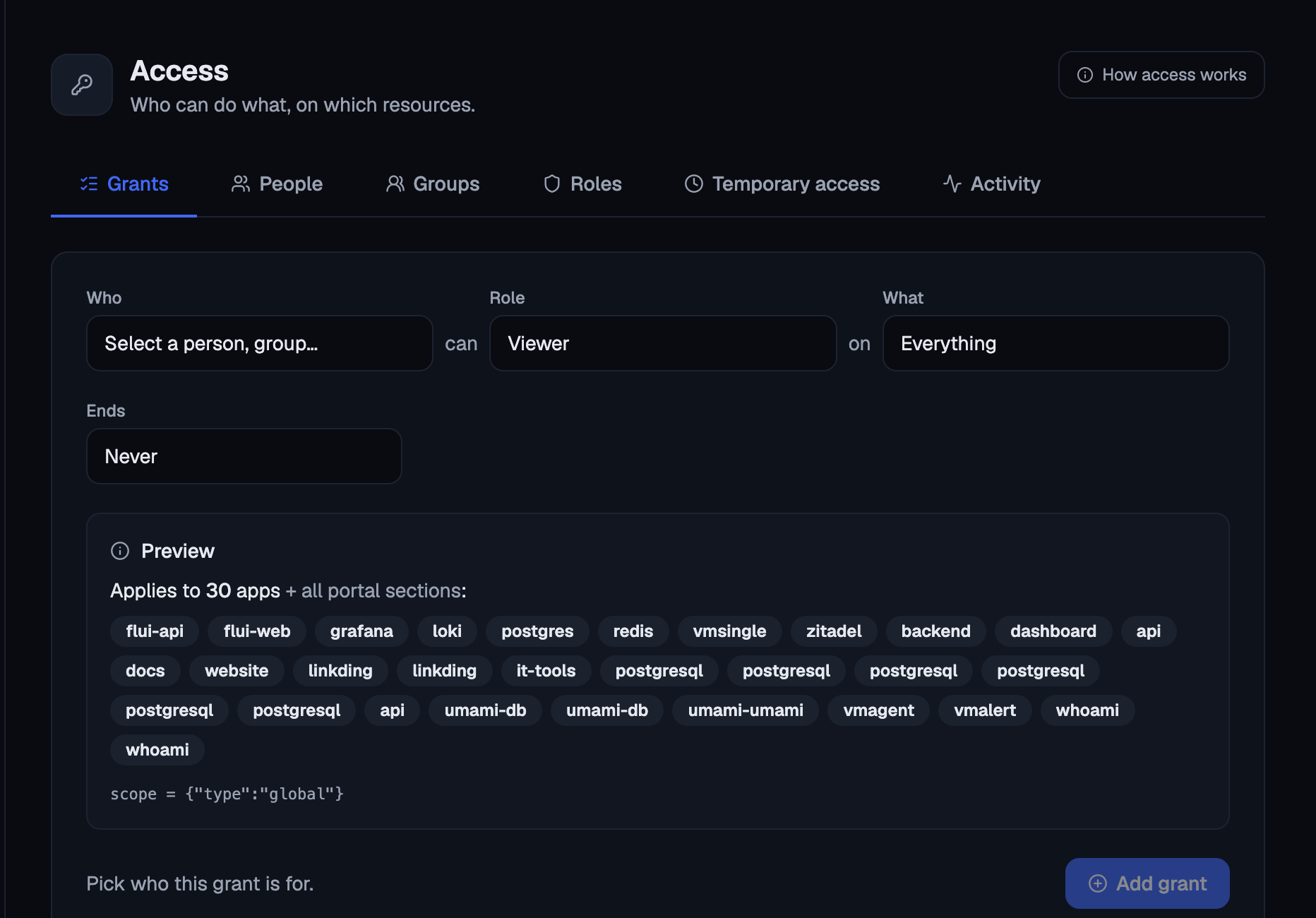
The Who list holds the people and the groups on the installation. Service accounts are not in it; their grants are made from the CLI or the API.
The People tab offers a second way in: create somebody’s account and give them their first grant in one step. The form previews which sections the new person will see.
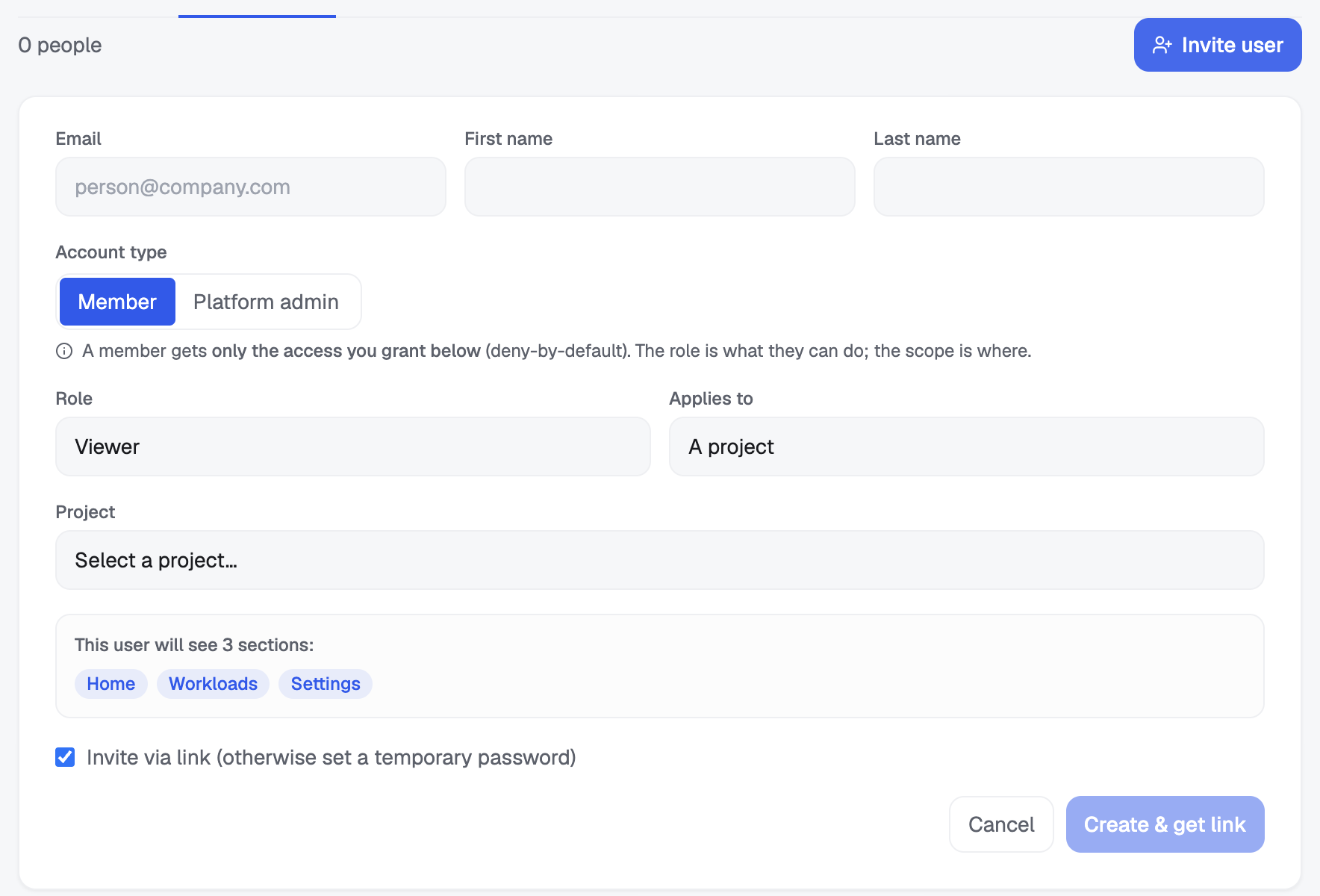
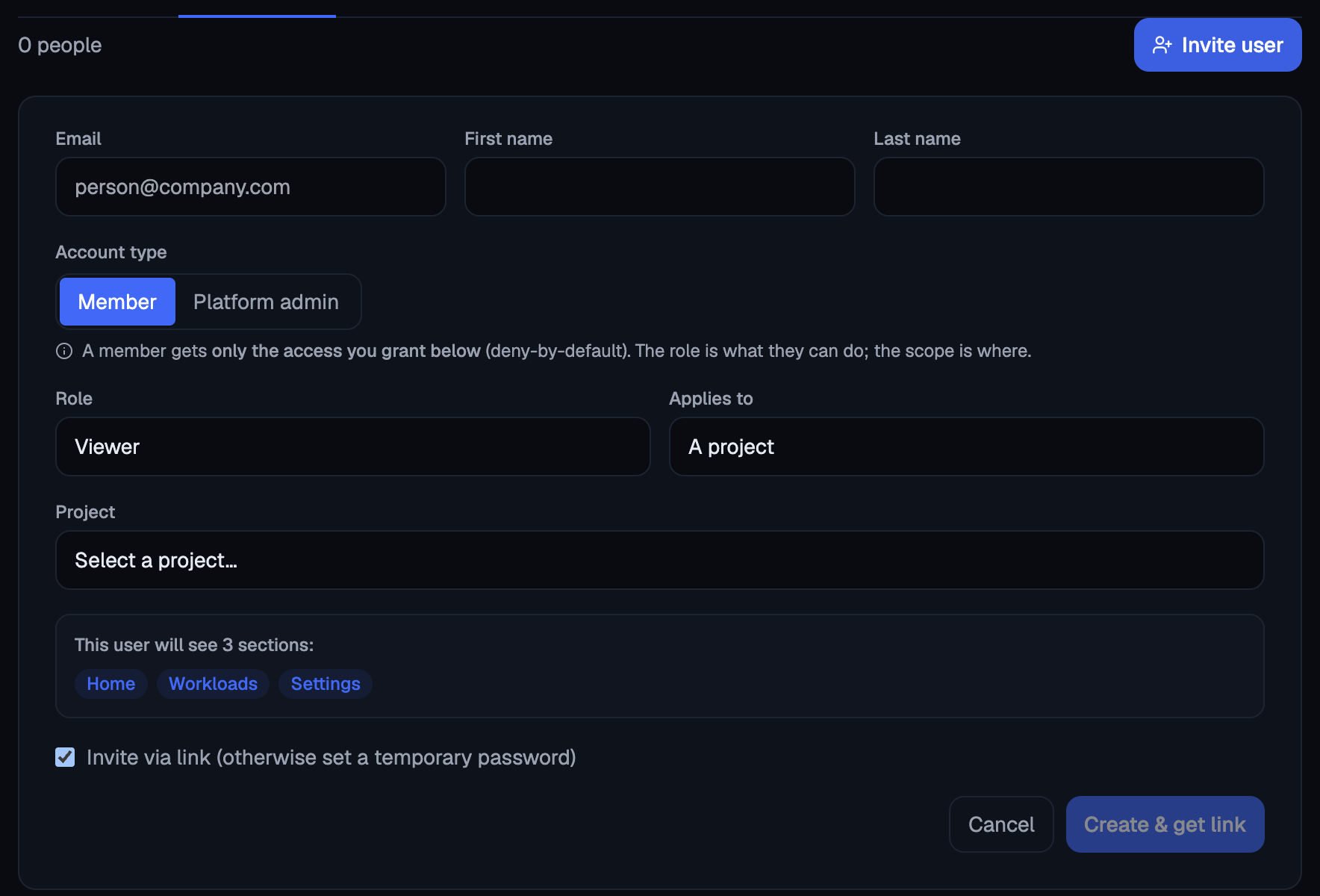
Below the builder, every grant Flui holds is listed with who, which role, what it applies to, how many applications that comes to, and when it ends. Grants that end on their own also have their own tab, Temporary access.
access_grant_list: every grant on the instance, with who holds it, which role and how far it reaches. Start here; the other access tools take a grant id.access_grant_add: makes one, in the same shape as the CLI: a principal, a role, a scope, a selector when the scope is a selector, and an end when it should be temporary.
Two limits apply:
- No more than the person. An agent can never grant more than the person whose credential it holds. The call is made as that person and checked by the same code a browser meets. A role above them is refused, and the refusal names it.
- It stops and asks you. Granting a role is part of the action cycle: the call does not run, a request appears for a person to answer, and the agent finds out the answer by trying again. Every grant asks. There is no “always” for granting access, because the grant does not exist yet, so a standing yes would cover every grant that followed.
Making a grant needs the Grant and revoke access permission group on the credential, and no other group includes it. It is never bundled into something like “deploy my applications”: somebody has to turn it on by name. See Choose what your agent may do.
Look before you take it away
Removing a grant is the riskier half, because the damage is invisible: nothing breaks in front of you, and somebody finds out on Monday that half their work is out of reach.
So Flui tells you first. Before a grant is removed, you get a sentence saying what its holder will no longer be able to reach: which applications, which portal sections, which permissions. It is computed by the same engine that enforces access, so it matches what actually happens.
Before you trust an empty list, check what kind of grant it is:
- When the grant named applications by slug, the listed applications are complete.
- When the grant is a standing rule, they are what matches today. The grant also covers whatever comes to match later.
- not known means the application list could not be read. It never means nothing.
flui iam grant listflui iam grant remove <grant-id> --dry-runflui iam grant remove <grant-id>The preview is printed before you are asked to confirm,
so you read it before you have said yes. --dry-run
prints it and removes nothing. --yes skips the
confirmation.
After the removal the CLI prints what actually happened. It can differ from the prediction if somebody else changed the same person’s access in between.
If the preview cannot be read, the command says so and carries on. It does not report an empty loss.
In the Grants tab, remove a row with the bin icon at its end. The confirmation dialog shows the same sentence and the same detail lines. If the preview cannot be read, it says so instead of showing nothing.
Rows carrying a role you may not administer have no remove button.
access_revocation_preview: what the holder of a grant would stop reaching. Changes nothing.access_grant_remove: removes it.
The preview tool lets an agent show you the loss in plain words before anything happens. The remove tool is told to call it first and to repeat the summary afterwards. Removing also stops and asks a person, like granting.
Groups
A group is a name with a list of email addresses. Grant a role to the group and everybody in it holds the grant. Add somebody to the group later and they hold it from then on.
Group membership lives in Flui, not in your identity provider. Deleting a group does not delete the grants that point at it; they stop matching anybody.
flui iam group create platform --description "Platform team"flui iam group add-member platform alice@example.comflui iam group listflui iam group remove-member platform alice@example.comflui iam group delete platformA group name is lowercase letters, digits and hyphens, and starts with a letter.
Access → Groups. Create a group, expand it to see its members, and add or remove people from the picker under the list.
No agent tool creates or edits a group. An agent with access permissions can grant a role to a group that already exists, and nothing more.
Sections have a third state
A portal section has three levels: hidden, full and read-only. A read-only section appears and its screens open, but its controls are disabled.
The server also refuses every request behind a read-only section that would change something, so a script using the same credential gets the same answer as the buttons.
No role you can hand out carries this level. It is what a guest of the public demonstration gets. Two of the sections it opens, Mail and Access, show other people’s personal details, which is why it stays limited to that use.
Access as a file
Grants can be exported to a file and applied back, so you can review access in a pull request instead of in a screenshot.
flui iam export > access-policy.yamlflui iam apply -f access-policy.yamlflui iam apply -f access-policy.yaml --pruneThe document is kind: AccessPolicy, and every line in
it is a principal, a role and a scope. Applying is
idempotent: grants already there are left alone, and you
are told how many were created and how many already
matched the file.
Without --prune, applying makes sure the listed grants
exist. With it, the installation is made to match the
file, and grants the file does not name are deleted. It is
off unless you ask for it.
Every line is checked before anything is written, so a file naming a role you may not grant is refused whole instead of applied halfway.
Groups are not in the document, and neither are
temporary grants: export leaves them out and --prune
never removes them. Manage those with the commands
above.
What am I allowed to do?
This helps when a refusal does not make sense, and before you promise somebody something.
flui iam whoamiflui iam roleswhoami prints the permissions the identity you are
signed in as actually carries. roles prints the roles,
what each one holds, and which of them you may hand out.
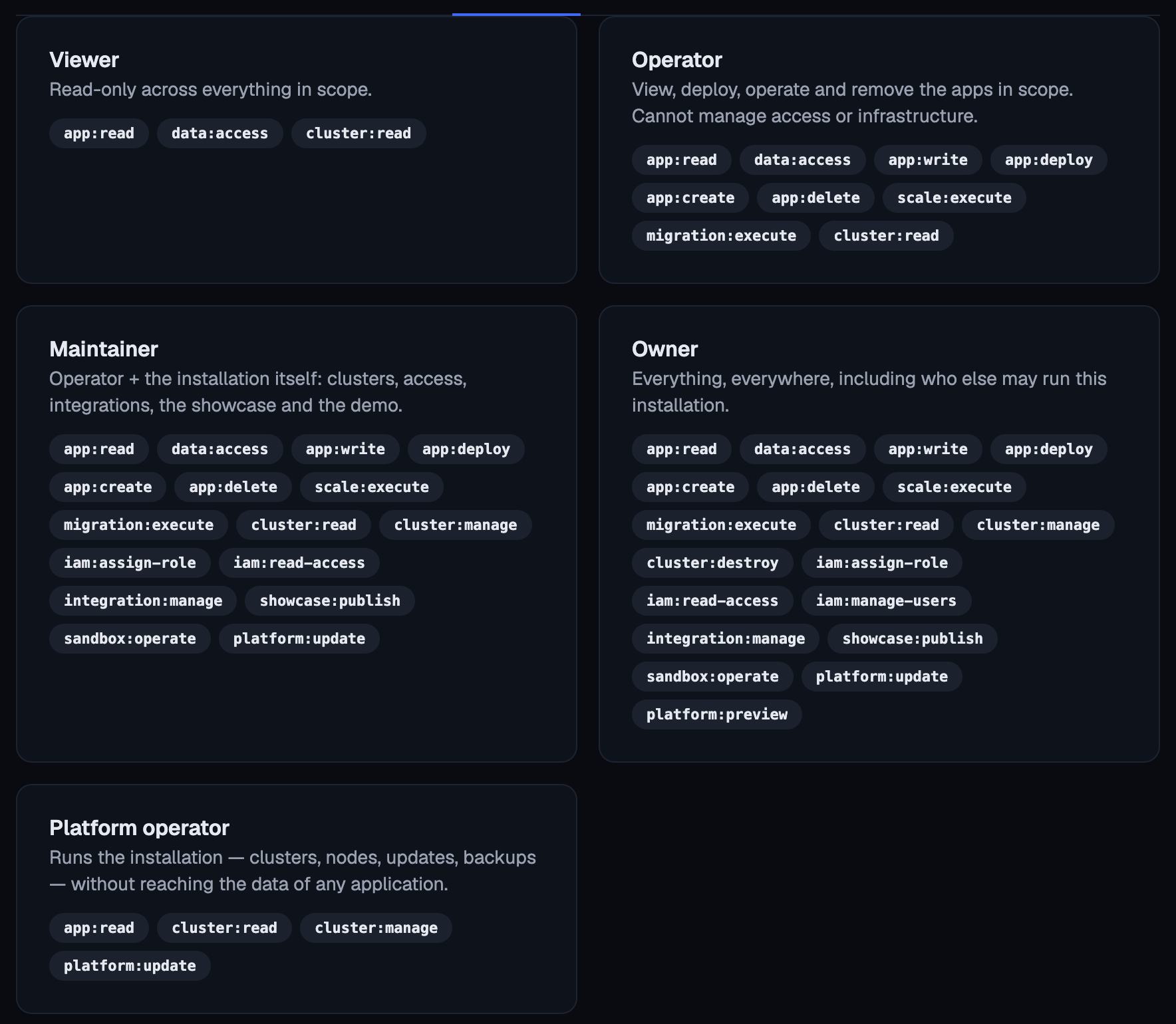
Access → Roles describes the roles and what each one carries.
If you can see the Access section but cannot change anything in it, a line above the list says so.
my_permissions answers all of it at once: who the
agent is acting as, what that person may do, which
portal sections are open and at which level, and which
tool scopes its own credential carries.
It separates three refusals that look alike but mean different things: a tool the credential was never given, a resource the person is not allowed on, and something this installation does not include. An agent should read it before telling you a capability is missing.
Where this goes from here
- Identity and OIDC: where accounts and sign-in actually live, and why Flui does not keep a password table.
- Connect an agent: the same question for something that is not a person.
- Choose what your agent may do: the permission groups, and why granting access is a switch of its own.