
Remove an application and its data
Removing an application takes the storage it was writing to with it. That is the most destructive thing you can do to an application, so every surface shows you what will be lost before it asks you to confirm.
What “with it” means
The data is deleted. It does not go to a bin or a holding area, and Flui cannot bring it back.
If the contents matter, take a backup first and check that
it completed. See flui backup. A backup
is stored separately, and removing the application does
not touch it. Backups already taken stay where they are and
can still be restored; the preview says until when. The
application’s backup policy stops, so no new backups are
taken.
The data-loss warning
Before it asks, Flui reads the running cluster and works out which storage belongs to this application. Then it shows you a sentence like this:
This also deletes 10 GiB of data in 1 volume.It cannot be undone.The platform writes that sentence once, and the CLI, the dashboard and an agent all show the same one, so you never see three different numbers on three surfaces.
Below it is the list of volumes, each with its name and size.
When the cluster cannot be read
The preview asks the cluster. Sometimes the cluster cannot answer, because it is unreachable or its credentials cannot be read.
When that happens, you are told:
The volumes this would delete could not be readfrom the cluster.Assume data will be lost — it is not known to be none.An empty list means “none found” only when the cluster was actually read. When it was not, no surface shows the empty result as “nothing to lose”. If you see this warning, treat the removal as one that destroys data.
When the cluster was read and no storage is attached, you are told that too.
Bundles and single applications
Some applications were deployed on their own. Others came as part of a catalog bundle, such as an app with its database and cache, installed together.
You do not need to know which kind you have. You name one application and Flui works out what removing it involves. If it belongs to a bundle, the preview lists every part and the removal takes all of them, because nobody wants a bundle left behind without its database.
Because the bundle is handled as one, a removal that is already running is reported as running instead of being started again for another part.
Removing it
flui app delete my-appThe command looks the application up, prints what it is
and what it would remove, and then asks you to type the
application’s name exactly. Anything else cancels it.
-f, --force skips that prompt. It is meant for scripts,
so be sure before you use it.
An application the platform installed for itself is
protected. The command refuses it and tells you that
--force is the only way past.
For a bundle, the command waits and reports progress for
up to five minutes. If the removal is still running after
that, it says so instead of reporting a failure.
--no-wait returns as soon as the removal is queued. For a
single application the command always queues and returns;
check the result with flui app list.
-c, --cluster <name|id> picks the cluster. When there is
only one, it is detected for you.
Open the application. At the bottom of its overview is a red line with a Delete application button (Delete bundle for a bundle).
The dialog is the preview. It lists what will be deleted (every part, for a bundle) and then the data impact: the warning sentence in red with each volume and its size, the amber “could not be read from the cluster” panel, or a plain line saying no storage is attached. The dialog reads this while it is open, so it may fill in a moment after the dialog appears.
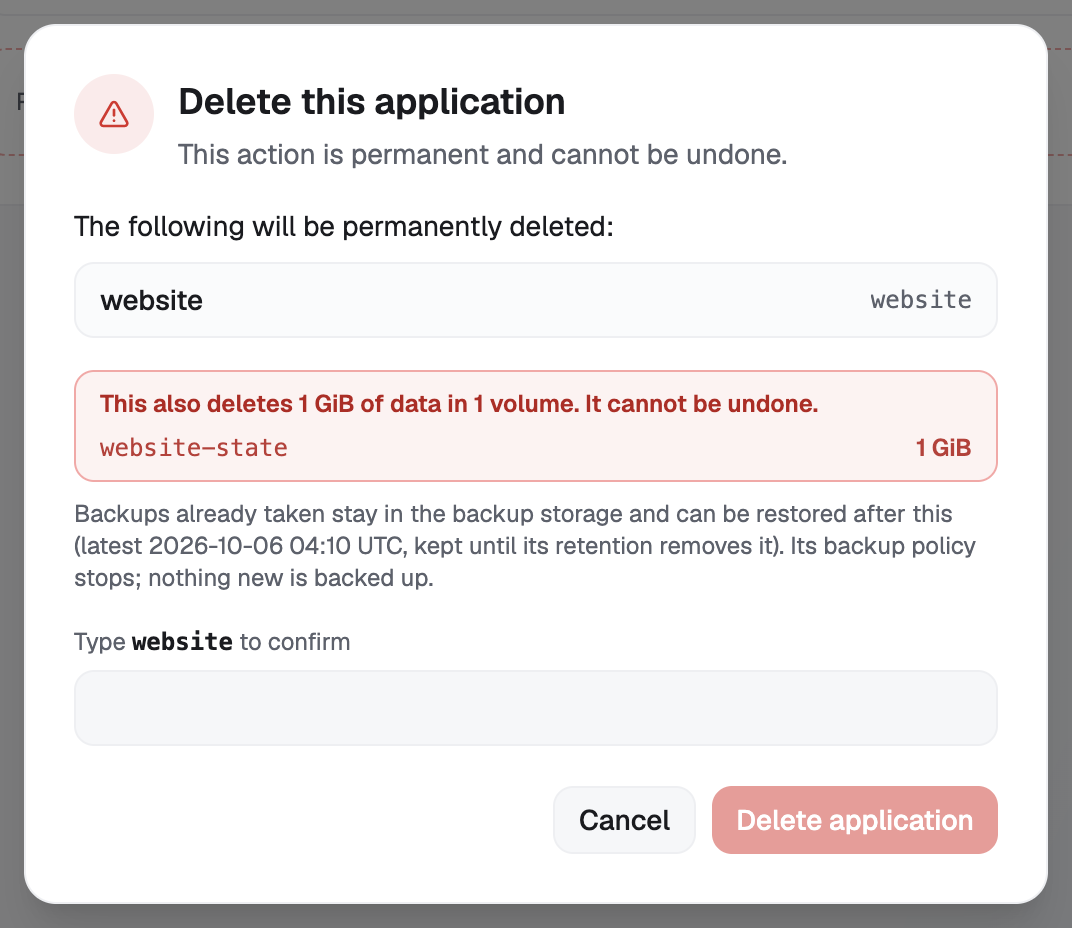
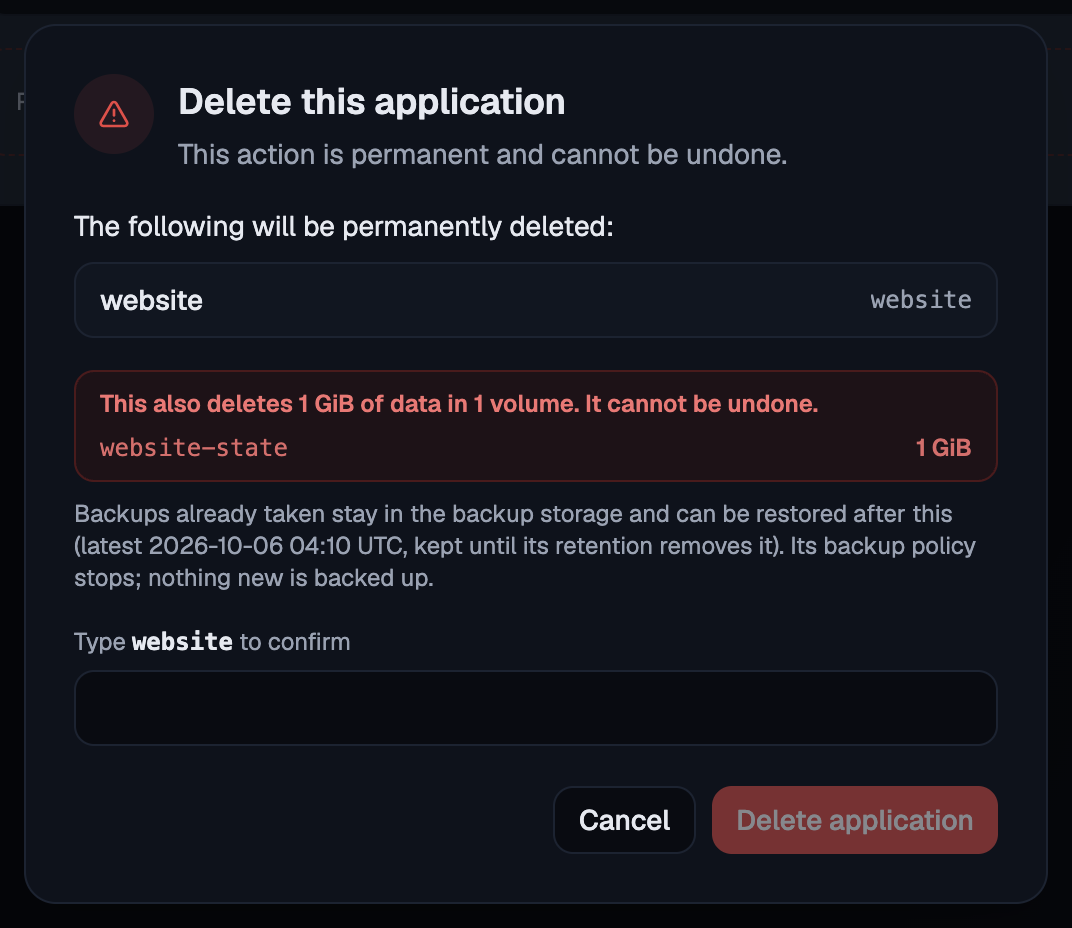
To enable the button, type the application’s name (the bundle’s name, for a bundle).
The dashboard also behaves differently in two cases:
- An application the platform installed for itself has no delete button. You cannot remove it from the dashboard.
- An application already being removed shows its progress instead, with Retry delete in case the removal got stuck.
An agent uses three tools, in this order.
app_list: finds the application’s id. The catalog lists what can be installed, not what is installed.app_removal_preview: shows what removal would take, without removing anything. It returns the warning sentence, the parts that would be removed, and the storage. When the cluster could not be read, it returns the storage asunknownwith an instruction attached: do not tell the person no data will be lost. The agent should repeat the sentence to the person, not summarise it.app_delete: removes it.app_uninstallis the same removal under a second name. Either one works for a bundle or a single application, so the agent does not need to know which it has.
Removal returns an operation id straight away. Nothing
polls it for the agent; the agent uses operation_status
to find out when the removal has finished.
The delete tool may be missing from the agent’s tool list, and that is expected. It appears only when two independent conditions hold: the credential carries the destroy depth for applications, and the server has destructive operations switched on. If either is missing, the tool is not listed. It is not broken, and it is not a permissions bug to work around. The preview tool needs only the look depth, so an agent can tell you what a removal would cost without being able to perform it, which is a sensible way to run one.
Removal is also one of the writes that stops and asks a person. When the caller is an agent, the call does not run. It raises a request naming the application and the data that goes with it, and a person answers. The agent is not notified; it finds out by making the same call again.
Storage no application owns
A cluster can hold volumes that no application owns any more, left by an older removal or by something removed outside Flui. You are still paying for them, and nothing else lists them. Flui lists them and lets you remove them.
flui cluster volumesIt prints each abandoned volume with its size, the reason
it counts as abandoned, and the total space held. Add
-o json for the full details and -c, --cluster to pick
the cluster.
To remove one, pass the reference the listing printed:
flui cluster volumes --remove user-a1b2c3/data-uptime-kuma-0The command refuses a reference that is not in the listing
it has just read, so you cannot delete something the scan
did not report as abandoned. It then asks you to confirm by
typing, unless you pass -f, --force.
Open the cluster and go to its Storage tab. Volumes with no application shows the total space held and a row per volume: its name, the application that left it when that is still known, and its size.
Each row has a delete control that opens an inline confirmation before anything happens. The control appears only for people who may manage the cluster. Reading the list needs less access than deleting from it.
cluster_orphaned_volumes returns the same listing:
what is being held, how much, and which removed
application it belonged to.
The tool is read-only, and no agent tool deletes these volumes. There is no preview to show and no application to name, only a volume with someone’s data in it. The agent should report what it found and give the person the command or the dashboard tab above.
The tool requires the backup-reading permissions rather than the application ones, because the scan covers the whole cluster, not only the caller’s own applications.
What the scan will and will not find
The listing is cautious. Naming a live volume by mistake could cost someone their data, while missing one only leaves a volume where it is. So it lists a volume only when it has a positive reason.
A volume is listed only when nothing running uses it, nothing that still exists could have created it, no existing application owns it, and it has been there long enough to have settled. A volume that appeared minutes ago is far more likely to be in the middle of being created than left behind.
As a result, an empty listing means “none found by these rules”, not “none exist”. A volume with nothing linking it to an application Flui knows about does not appear here, unless it carries the name of an application that was deleted or sits where every application is gone. If the scan could not run at all, it says so, and the empty list proves nothing.
Removal runs the whole check again before it touches anything, so a volume that has been put back into use since the listing was printed is refused, not deleted.
Where this goes next
- The app concept: what an application is made of, which is what removal takes.
- Storage classes and dedicated placement: where that storage lives while the application is running.
- Catalog vs application: why a catalog install is several applications that go together.
flui appandflui backup: every flag for both parts of this page.- The Flui Assistant and MCP: where the tools above come from.