
Watch and operate a running application
This page covers what you do after the deploy. It is a loop you will repeat many times: look at the application, decide whether something is wrong, act, and look again. Everything here works the same whether the app came from your own repository or from the catalog.
Is it up, and is it working?
Asking whether an app is OK means asking two separate questions.
Is it up? How many instances should be running, how many are, how much CPU and memory they use, and whether anything has been restarting. This is the platform’s view, and it applies even to an application nobody is visiting.
Is it working? How many requests arrive, how many fail, how slow they are, and what the app says in its logs. This is the user’s view. An app can be up and still completely broken.
Check them in that order. An app that is not up explains every other symptom you will find.
Look at it
Each of these takes the application name or slug, and
-c, --cluster to pick the cluster when your profile has more
than one. Most take -o json when you want to pipe the output
somewhere.
flui app status my-api # is it upflui app metrics my-api # CPU, memory, network, restartsflui app traffic my-api # requests, errors, latencyflui app alerts my-api # what has fired, newest firstflui app logs my-api # what the app is sayingflui app crashes my-api # why it fell overflui app status is the first one to run. It prints the stored
facts (status, kind, exposure, when it was last deployed), then
the live ones: how many instances are wanted, how many are
ready, the image each container runs, and the URL the app
answers on, with a warning line if its certificate is not
issued yet.
flui app metrics is the current reading: CPU and memory
against their reserved amount and their ceiling, network in and
out, instances ready and unavailable, and the restart count. A
number shown as - means nothing was measured, which is
different from zero.
flui app traffic is measured at the edge, in front of the
app, so it needs nothing added to your code. Keep three things
in mind:
flui app traffic my-api --window 1h- The window is an average. On a quiet app a short window reads as zero even when there was traffic, so widen it.
- If the app has no public route, the command says so instead of printing zeros.
- If the percentile latencies are flagged as coarse estimates, trust the mean and not the percentiles. The underlying measurement is too coarse for that app.
flui app alerts shows one row per episode, newest first. An
alert that keeps firing updates its row instead of adding new
ones. --firing narrows it to what is wrong right now, and
-n changes how many rows you get. A row marked with *
stopped reporting instead of resolving cleanly. Its end time is
a guess, so do not read it as the time the app recovered.
flui app alerts my-api --firingAn empty list means nothing was recorded, not that the app is
healthy. Pair it with traffic for a live reading.
flui app logs returns the last 100 lines by default. Narrow
it down before you read:
flui app logs my-api --level errorflui app logs my-api --tail 500flui app logs my-api --search "connection refused"flui app crashes is separate from the log. It is the
platform’s own reading of recent failures: a title, a category,
the severity, when it was detected, the reason and a suggested
action. To open one in full, or mark it handled:
flui app crash my-api <crash-id>flui app crash my-api <crash-id> --dismissWhen a diagnosis proposes a change, such as a higher memory
limit after an out-of-memory kill, Flui does not apply it on
its own. flui app crash my-api <crash-id> --apply applies it,
and the application restarts.
An application’s page is a row of tabs that follows the same split as above.
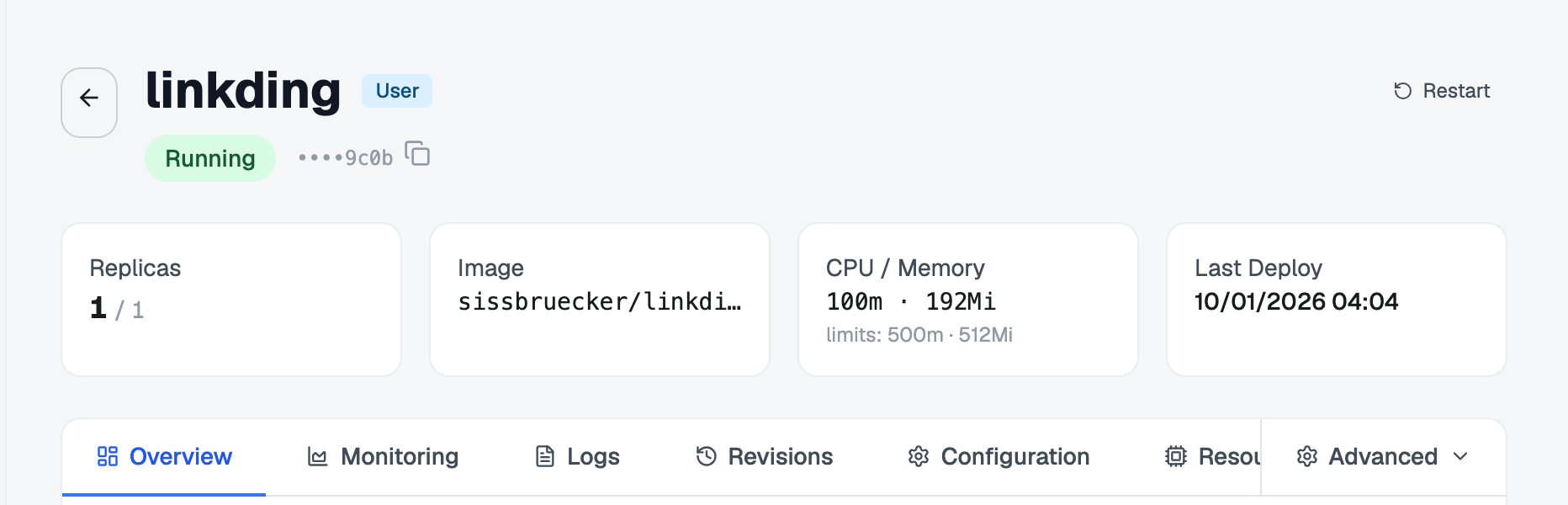
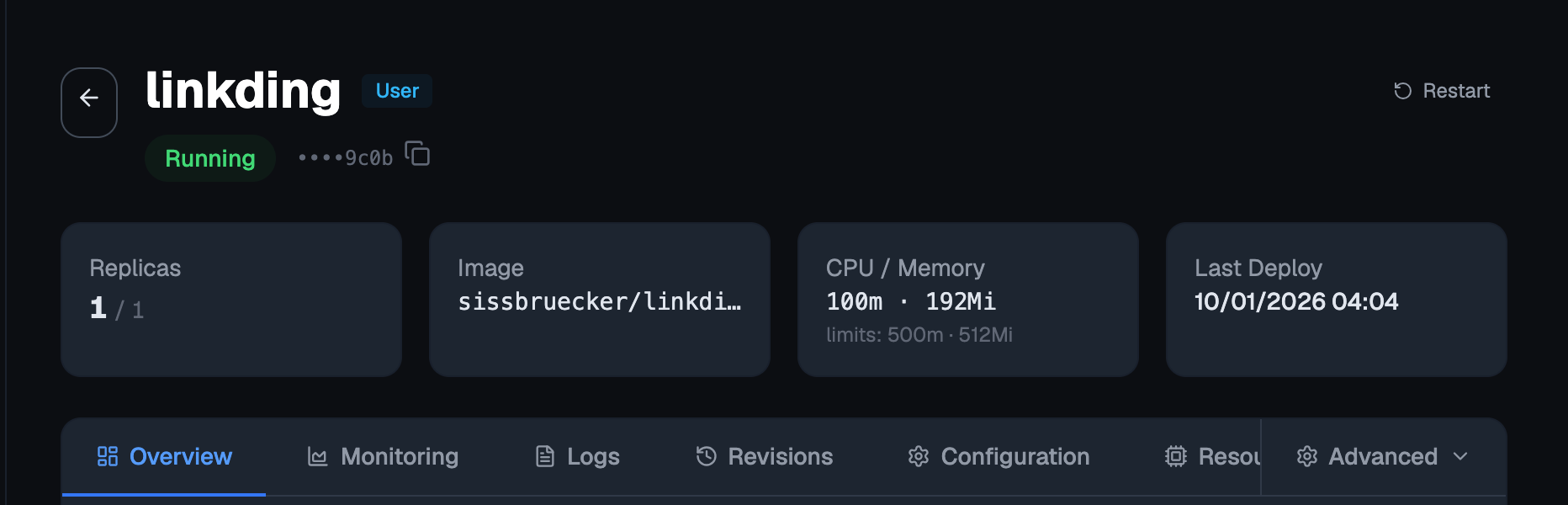
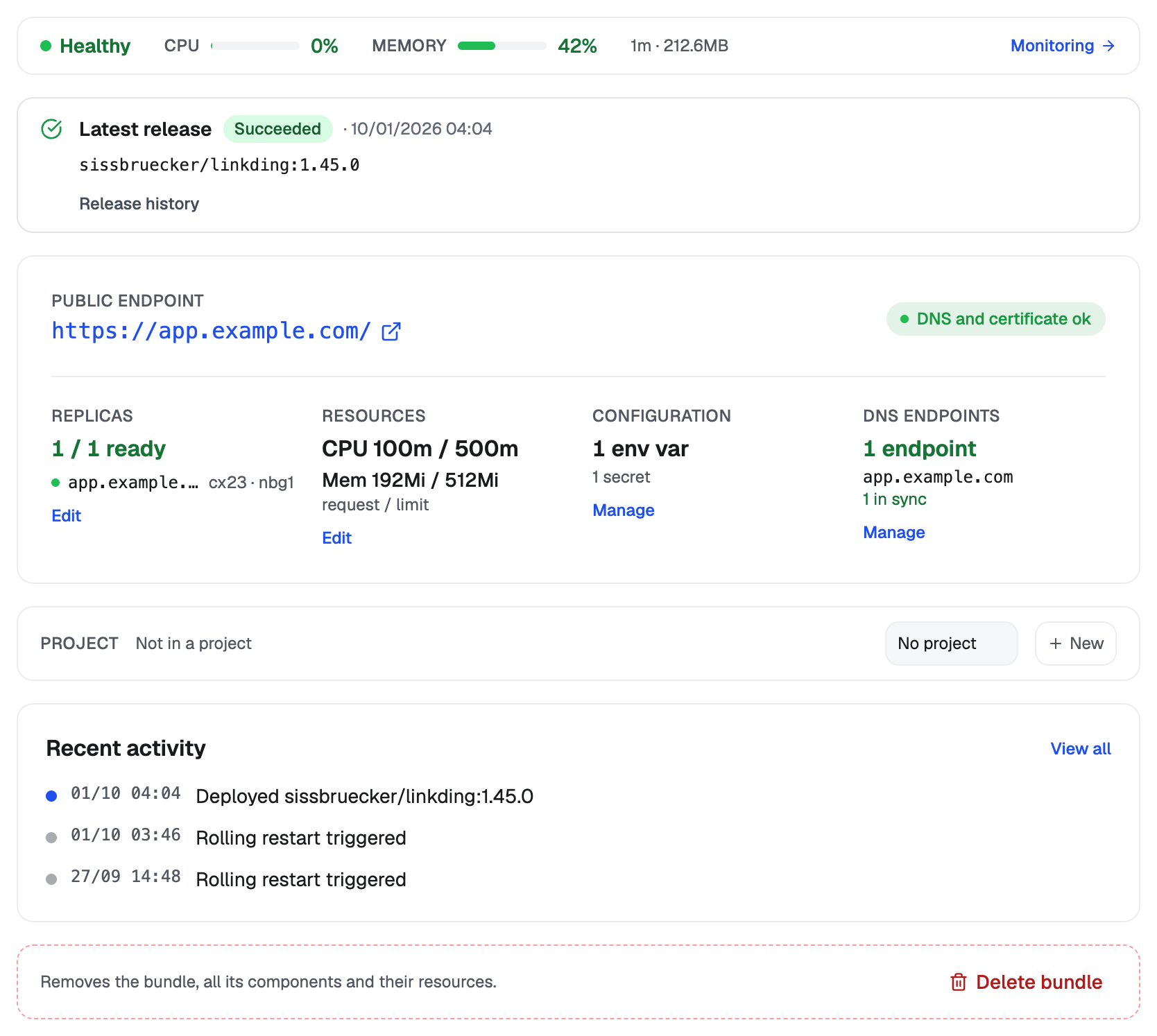
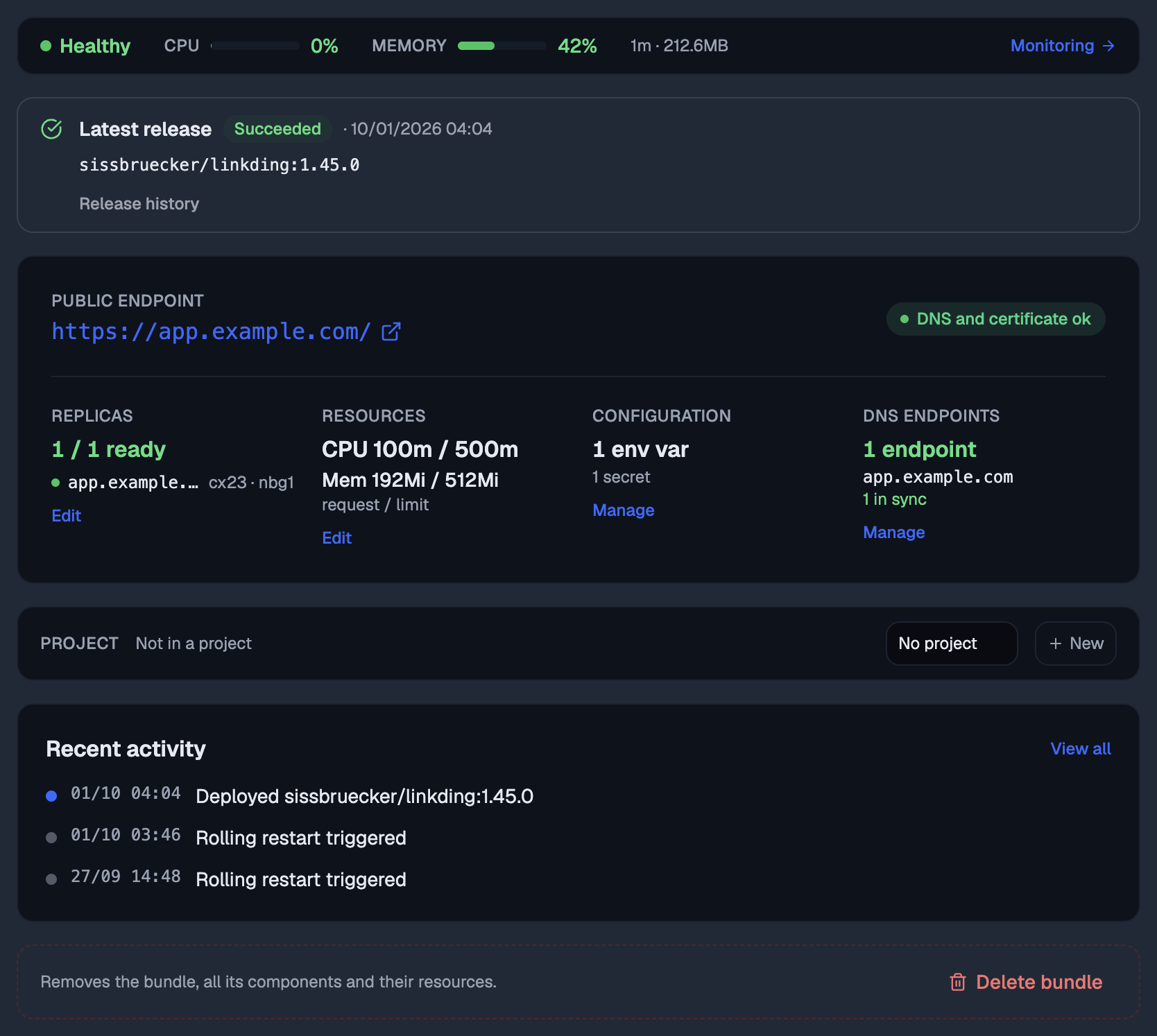
- Overview: the state at a glance, the current release, a banner when there are unresolved crash diagnoses, and the delete control at the bottom.
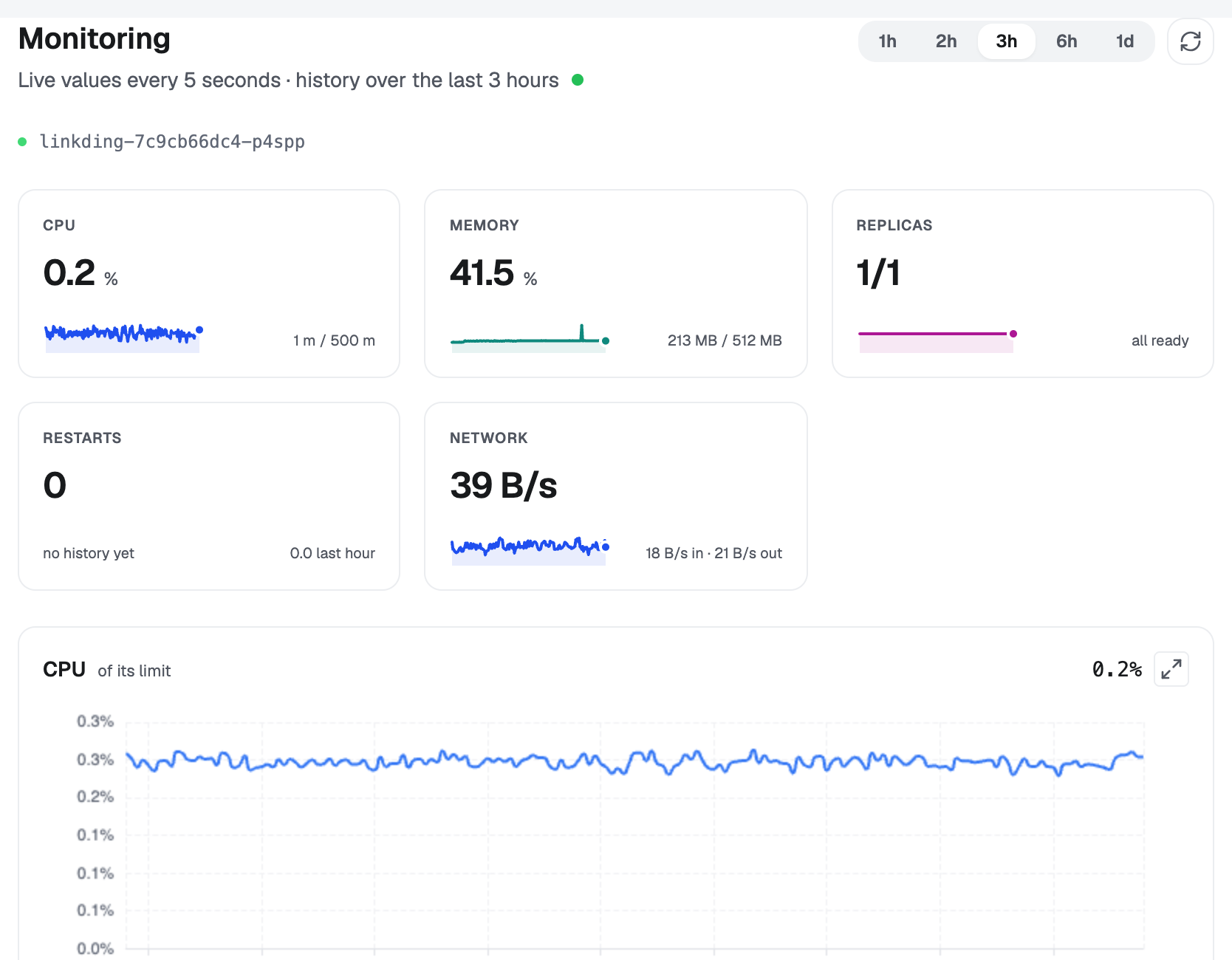
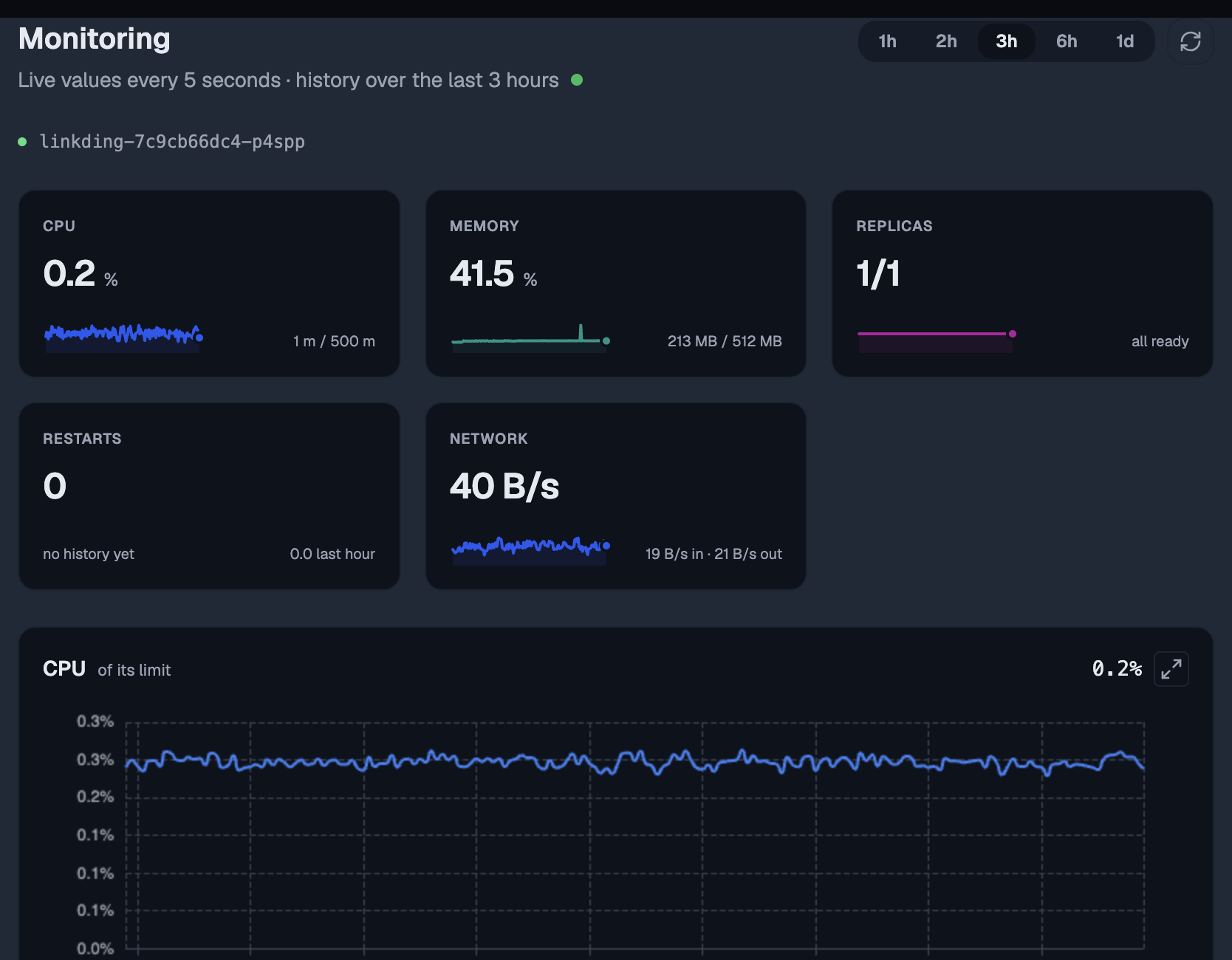
- Monitoring: CPU and memory, instances ready and broken
down, historical charts, and below them the edge traffic and
the alert history. Everything
metrics,trafficandalertsprint, on one page. - Logs: the log viewer, with a count per level you can toggle, free-text search, time-range presets and a custom date range, and a volume chart you can drag across to narrow to the minutes you care about.
- Revisions: the timeline of what happened to this app, and where you roll back from.
- Releases: the deploy history.
- Configuration and Resources: what the app is set to, and how much it may use.
- Backup: how the app is protected, and its snapshots.
Some tabs appear only when they apply: Builds for an app built from your repository, Access for a database or cache, and DNS, Gateway and Schedules for anything that is not one.
Two more are behind an Advanced menu, because you need them only when something goes wrong:
- Diagnoses: the same crash reports as
flui app crashes, with a count badge when any are unresolved, and Apply on a diagnosis that proposes a change. - Debug pods: a per-instance snapshot for when the everyday views no longer explain what is happening.
An agent reads an application with these tools, all by
application id, which it gets from app_list first:
| Tool | Answers |
|---|---|
app_status | Instances wanted and ready, containers, rollout state |
app_metrics | CPU, memory, instances, disk, now or over a past period |
app_traffic | Request rate, status codes, error share, latency, at the edge |
app_alerts | Alert history, newest first, one row per episode |
app_logs | Recent log lines, filtered |
app_events | The audit timeline: deploy, rollback, scale, restart, start, stop |
app_debug | Why it is failing when the views above come back empty |
How three of them behave:
app_logs does not give the agent your logs. The agent
gets counts and metadata, never the lines. The lines are shown
to you in the viewer, and only what you select is passed on. So
an agent cannot summarise a log it was never given, and one
that offers to is describing something it did not read.
app_metrics and app_status answer different things.
app_status reads the cluster directly for the live instance
counts. app_metrics carries the network and disk figures
app_status has no source for, and can look back over time.
When nothing has been measured it says so instead of answering
zero.
Use app_debug for a workload that never started. A
container that failed to start has no logs, so an empty
app_logs is the signal to switch to app_debug, not the end
of the investigation.
The levers
There are four, and they do less than people expect: none of them changes what the app is, only how much of it is running.
flui app restart my-apiflui app scale my-api --replicas 3flui app stop my-apiflui app start my-apiRestart replaces the running instances one at a time, without touching the image or the configuration. Use it to clear a stuck process.
Scale sets the instance count, from 0 to 20.
Stop scales to zero and marks the app stopped. Nothing it holds is deleted, and nothing needs redeploying to bring it back.
Watch out for one thing: stopping writes zero over the instance count. When you start the app again it comes back with a single instance, whatever it ran before. If it was on three, scale it back to three yourself.
Restart is a button on the right of the application’s header. It reads Restart to apply when saved changes are waiting for it. It is the one action available from every tab.
Scaling is on the Resources tab, with CPU and memory. Press Edit, set the instance count with a stepper from 0 to 20, and Apply it. Zero is allowed, and it is how you take an application down from the browser; there is no separate stop button.
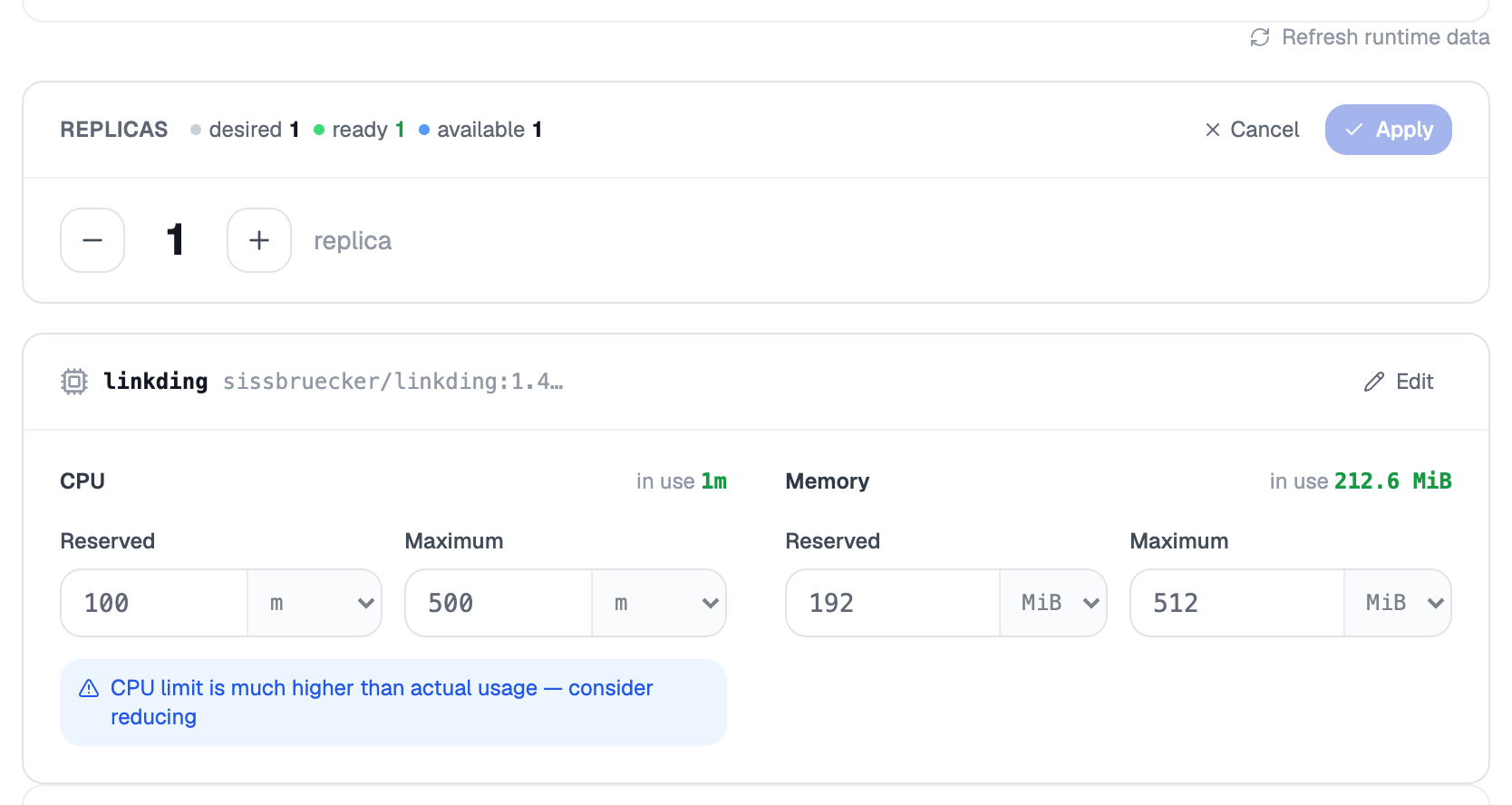
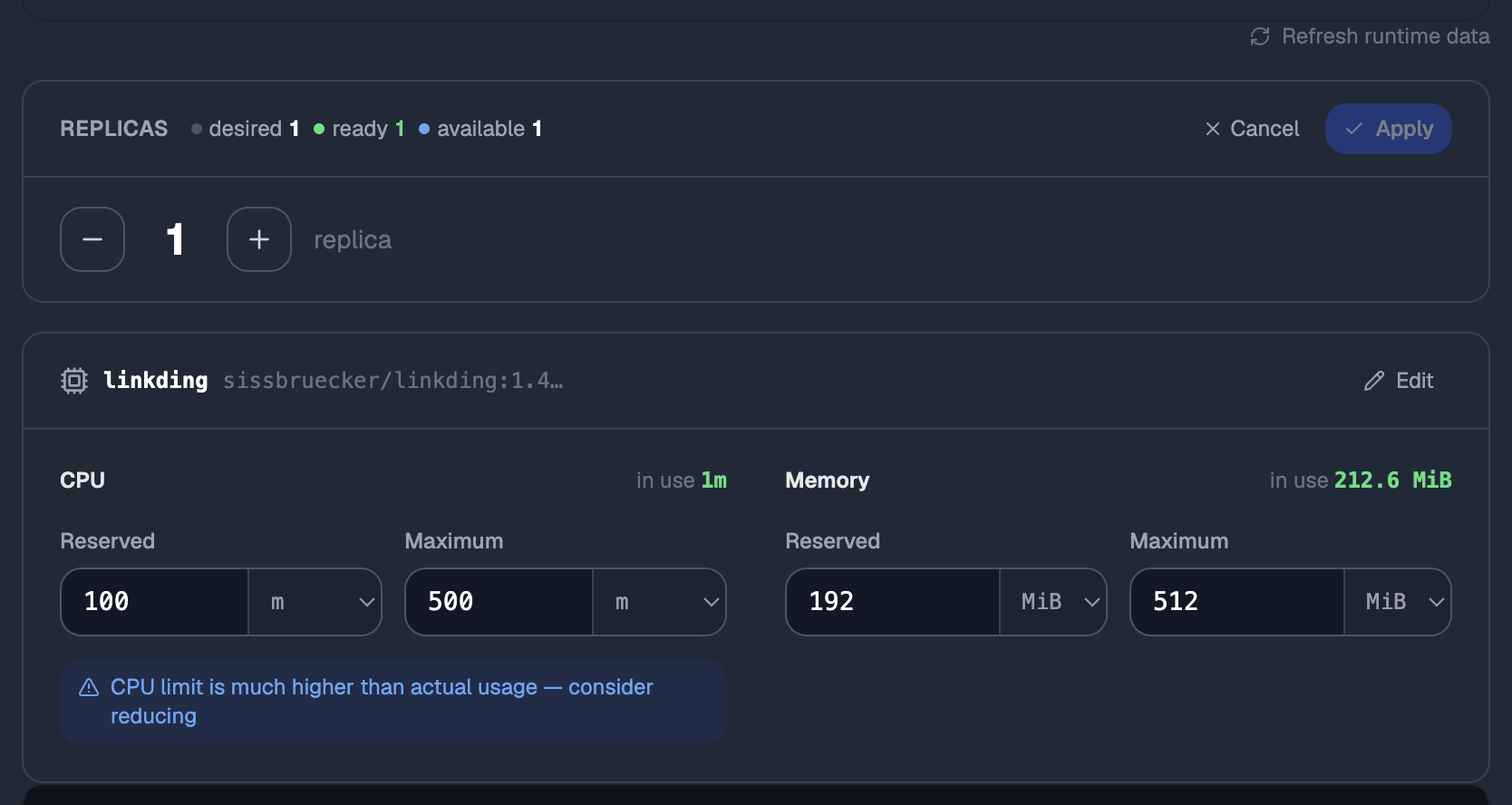
Changing CPU or memory on the same tab replaces the running instances to apply it, so the app restarts. Raise Maximum, not Reserved, when something is being killed for using too much memory: Reserved only holds room for the app, while Maximum is the limit at which it gets killed.
app_restart, app_scale, app_start and app_stop do
exactly what the commands do. app_set_resources changes the
CPU and memory an app reserves, its ceilings or both, and only
the values it is passed; anything left out keeps its value.
app_crash_apply makes the change a crash diagnosis proposes.
One difference matters: app_stop is inside the action
cycle and the other three are not. When an agent asks to stop
an application, the call does not run. It is refused with a
request for a person to answer, and the agent learns the answer
by trying again later. Restarting, scaling and starting run
straight away.
Stopping is treated differently because it is the only one of the four that takes the app off the internet.
See When your agent stops to ask you for what that request looks like and where you answer it.
Going back to a version that worked
Every deploy and every rollback is recorded as a release. The history is append-only: a rollback adds a new entry marked as a rollback and does not erase the one you are leaving. So you can always tell later what happened, and in what order.
Find the target first, then deploy it.
flui app releases my-api # what has been deployedflui app releases my-api --current # just the live oneflui app versions my-api # what images exist to go back toflui app versions lists the images in the registry with their
tag, their short digest, how many releases used them, and a
marker on the one currently deployed. You pick from that list.
Then put one back:
flui app redeploy my-api a1cac27flui app redeploy my-api sha256:812bdfd0a833...flui app redeploy my-api --build <build-id>redeploy skips the build and puts an existing image back on
the cluster. It records a new release like any other deploy.
There is no flui app rollback command. From the terminal, you
go back by redeploying a known-good image. The dashboard and
the agent surface have a dedicated rollback that picks the
target for you; the CLI asks you to name it.
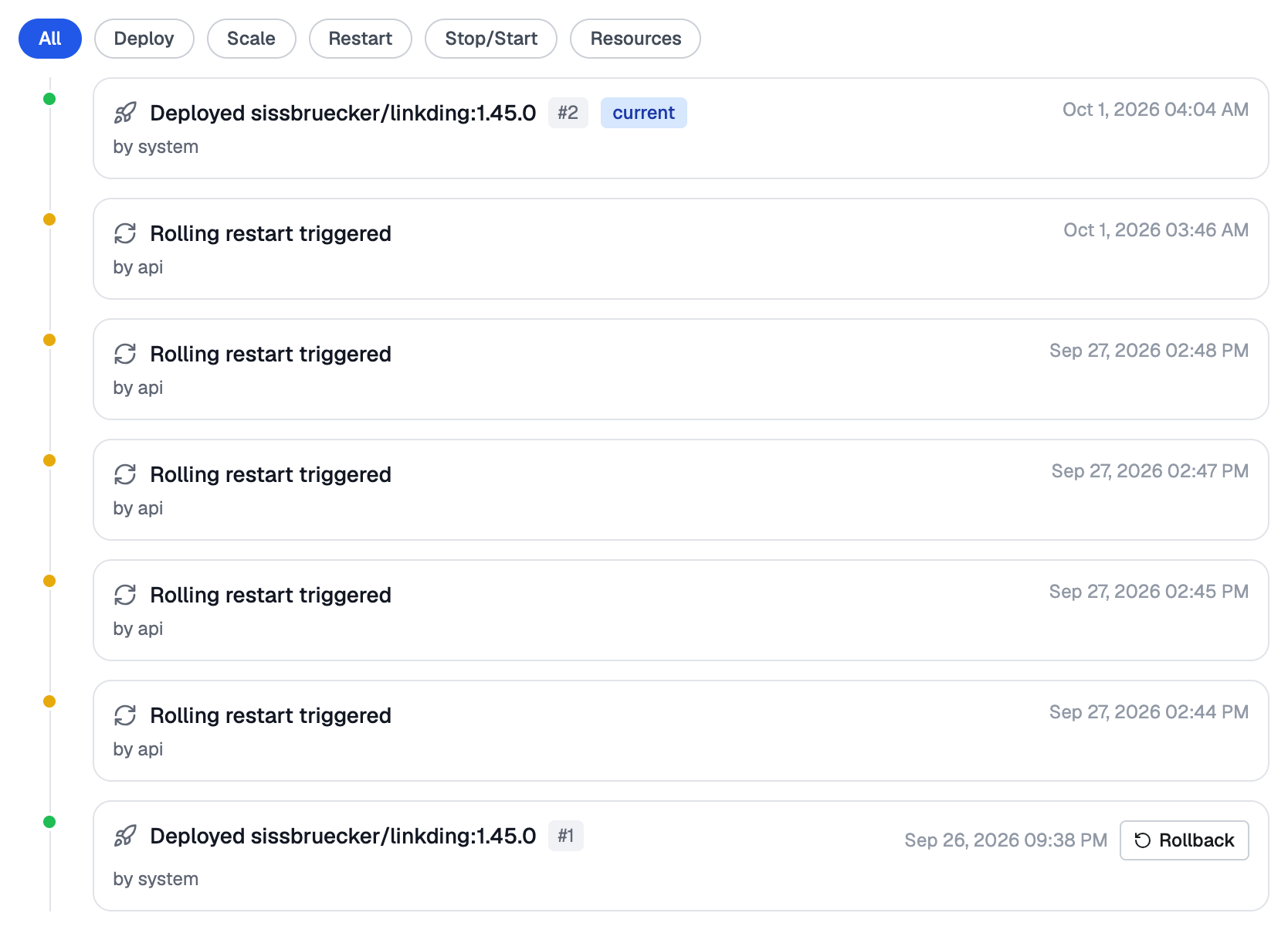
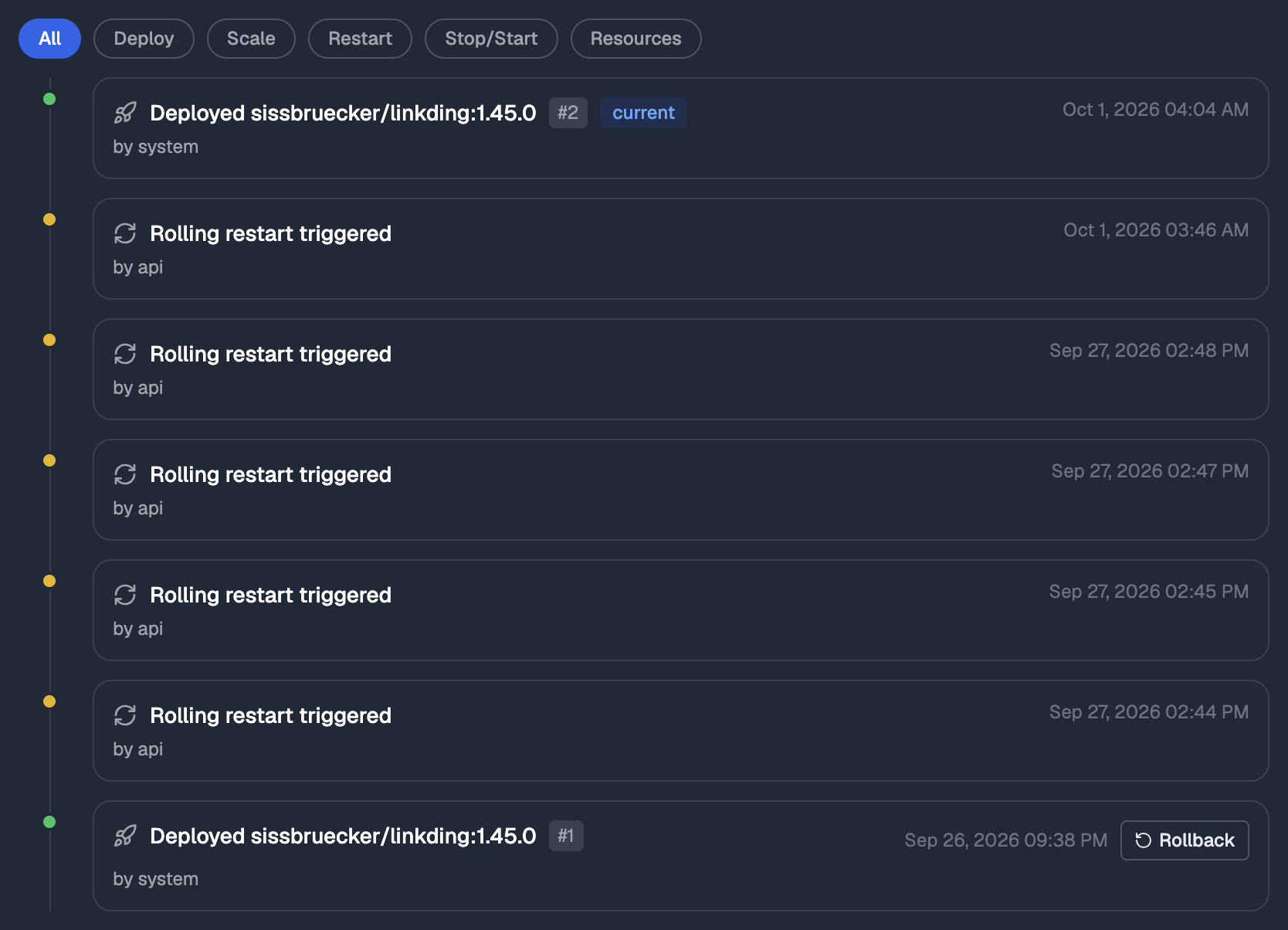
The Revisions tab is the timeline: every deploy, rollback, scale, resource change, restart, start, stop and configuration change, in order, with who or what did it.
Deploy and rollback entries carry a Rollback button. Press it and the app goes back to that revision, recorded as a new entry at the top of the same timeline.
The Releases tab is the narrower view: only the deploy history and the current release.
app_releases lists the deploy and rollback history.
app_events is the wider timeline, and it holds the revision
numbers.
app_rollback performs the rollback. Called with only the
application id, it undoes the most recent deploy: it picks the
latest earlier revision that did not fail and names it in its
answer, so you can disagree. Pass a revision number or a build
id to go somewhere specific instead.
A rollback runs in the background. The tool returns an
operation and nothing follows it for the agent, so the agent
has to check operation_status before telling anyone the app
is back.
Work that runs on a clock
A scheduled job runs one command on a cron schedule, using the application’s own image and configuration. Your nightly cleanup script sees the same database URL, the same credentials and the same code as the running app, because it is the running app started with a different command. There is nothing separate to build, configure or keep in sync.
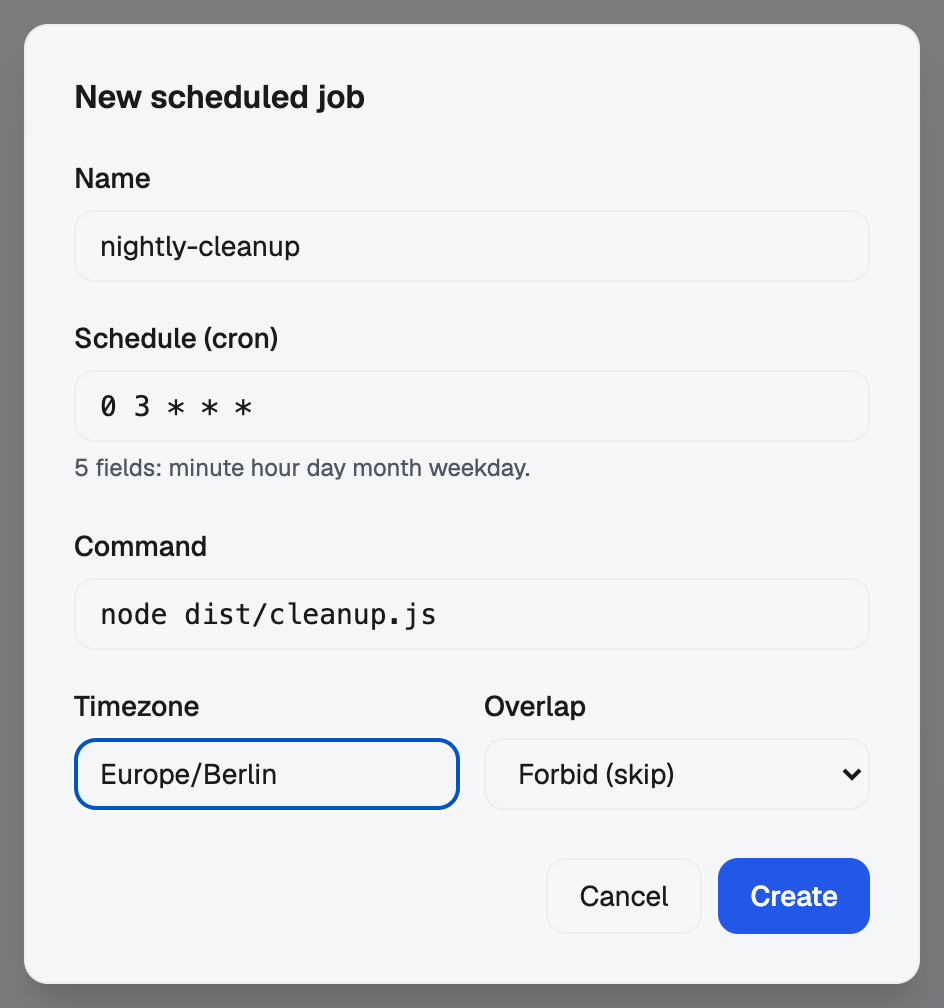
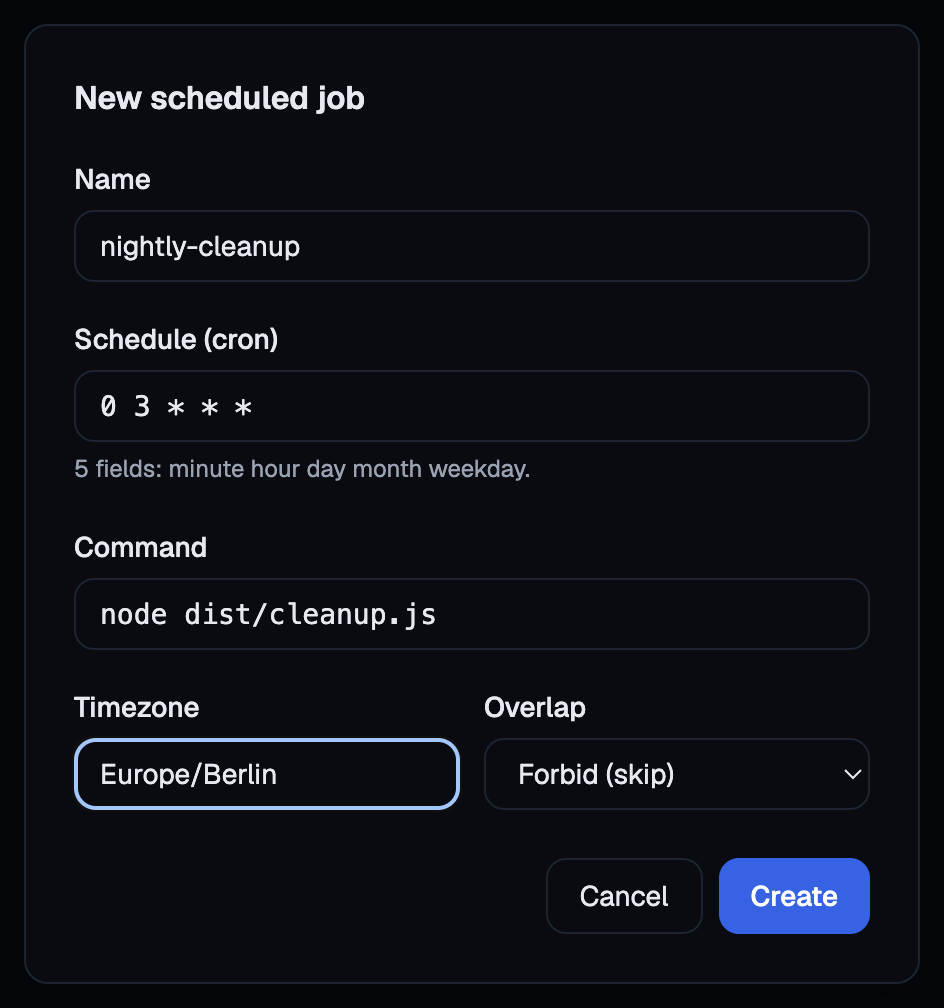
A schedule has five parts: a name, a cron expression with the usual five fields, the command, an optional timezone, and what to do when a run is still going when the next one is due.
Overlapping runs are skipped by default. If last night’s job is still running when tonight’s is due, tonight’s run is skipped instead of starting alongside it. That is the safe choice for anything that touches data. You can choose the other behaviours (let runs overlap, or replace the running one) when your job is safe to run twice at once.
flui app schedule create my-api \ --name nightly-cleanup \ --schedule "0 3 * * *" \ --command "node dist/cleanup.js"The name may contain only lowercase letters, numbers and dashes. The command runs through a shell, so a pipeline or a sequence works as you would write it in a terminal.
| Flag | Effect |
|---|---|
-n, --name | Schedule name. Required. |
-s, --schedule | Cron expression, five fields. Required. |
-x, --command | The command to run. Required. |
-t, --timezone | IANA timezone, e.g. Europe/Rome. Default: cluster time. |
--concurrency | Allow, Forbid or Replace. Default: Forbid. |
--disabled | Create it suspended, so it does not run yet. |
The other schedule commands:
flui app schedule list my-apiflui app schedule runs my-api nightly-cleanupflui app schedule logs my-api nightly-cleanupflui app schedule trigger my-api nightly-cleanupflui app schedule delete my-api nightly-cleanupruns lists recent runs with their status (succeeded, failed
or still running) and whether each was started by the clock or
by hand. logs shows the output of the most recent run, or of
a specific one with -r, --run. The platform’s retention
decides how far back the history goes, and once a run’s
instance is gone its logs are gone with it.
trigger starts a run now, independently of the schedule. Use
it to test a job without waiting until three in the morning.
The run appears in runs marked as manual.
To change a schedule in place, flui app schedule update takes
only the flags you pass: --schedule, --command,
--timezone, --concurrency. flui app schedule suspend
stops it firing without deleting it, and resume turns it back
on; a run already in progress finishes.
A schedule declared in the application’s flui.yaml is changed
there and released; update and delete refuse it.
Applications that are not a database or a cache get a Schedules tab. It lists each schedule with its cron expression, whether it is enabled or suspended, when it last ran, and its command.
For each schedule you can:
- Run now: start a one-off run outside the schedule.
- Runs: open the run history, with the status and trigger of each run, and the output of any one of them.
- Suspend / Enable: stop it firing without deleting it, and turn it back on.
- Edit: change the schedule, command, timezone or overlap policy in place.
- Delete: remove it, together with its run history; a run still in progress is stopped.
Everything here is also available in the CLI.
schedule_list, schedule_create, schedule_update,
schedule_suspend, schedule_resume, schedule_trigger,
schedule_runs and schedule_delete, all by application id.
There is no tool for a run’s logs, so do not go looking for one. An agent can see that last night’s job failed, but reading its output takes the CLI or the dashboard.
schedule_delete counts as destructive, which has two
consequences. It may not be offered at all: a destructive tool
appears only when the agent’s credential carries that depth and
the installation has destructive operations switched on, so its
absence is expected and not a fault. When it is offered, it is
inside the action cycle: the agent’s call stops and asks a
person before a schedule is removed for good.
flui app manifest is a writing aid
flui app manifest does not print the manifest of a running
application. It prints the flui.yaml authoring reference:
every field, what it means, and an annotated example you can
start a new project from:
flui app manifestflui app manifest --exampleflui app manifest --example nextjsIt runs entirely on your machine, with no cluster, no login and nothing read from the application. It is a writing aid, which is why it is documented with deploying rather than with operating.
Where to go next
- Set an application’s configuration and secrets: changing what the app is given, and what happens to the running instances when you do.
- Move an application to another cluster: when the fix is a different cluster instead of a lever.
- Remove an application and its data: removal takes the storage with it. Read that page before you need it.
- Observability as first-class: where the logs and metrics on this page come from, and why they are there from the first minute.
- The app concept: what the application you have been operating is made of.